Git Explained in the Simplest Way

When I started learning programming, one thing that confused me a lot was how to manage code properly.
Sometimes my code was working, sometimes it was broken, and many times I wanted to go back to the old version — but I couldn’t.
I used to save files like:
project_finalproject_final_lastproject_final_really_last
This method creates confusion and is not professional.
That is when I learned about Git.
Git is not just a tool — it is a habit of working safely with code.
In this blog, I will explain Git slowly, deeply, and in very easy language, so that even a beginner can understand and explain it to others.
What is Git? (Very Simple Meaning)
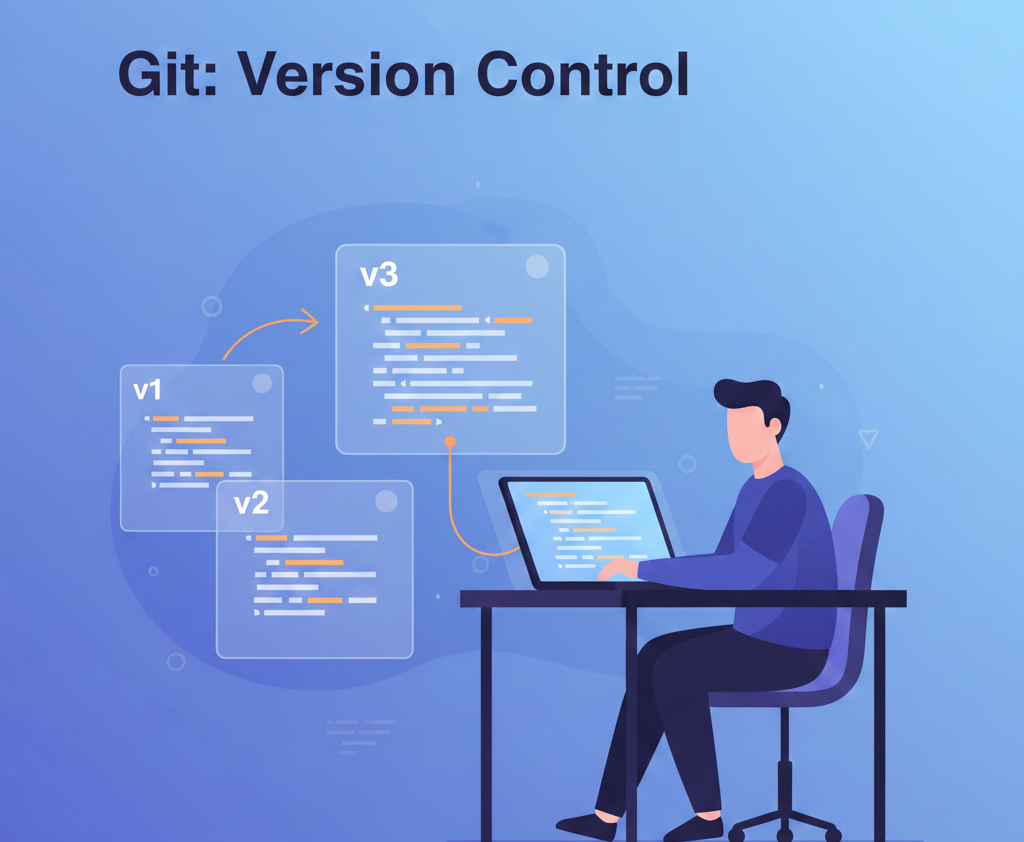
Git is a version control system.
That means:
Git keeps track of every change in your code
Git remembers who changed what and when
Git allows you to go back to older versions safely
👉In simple words:
Git is like a notebook that remembers every version of your work.
Why Do We Need Git?
Without Git:
If code breaks, old code is lost
Team members overwrite each other’s work
No history of changes
No confidence to experiment
With Git:
Every change is saved safely
Mistakes can be undone
Teamwork becomes easy
Code becomes professional
👉 This is why Git is used in almost every IT company.
How Git Actually Works (Core Concept)
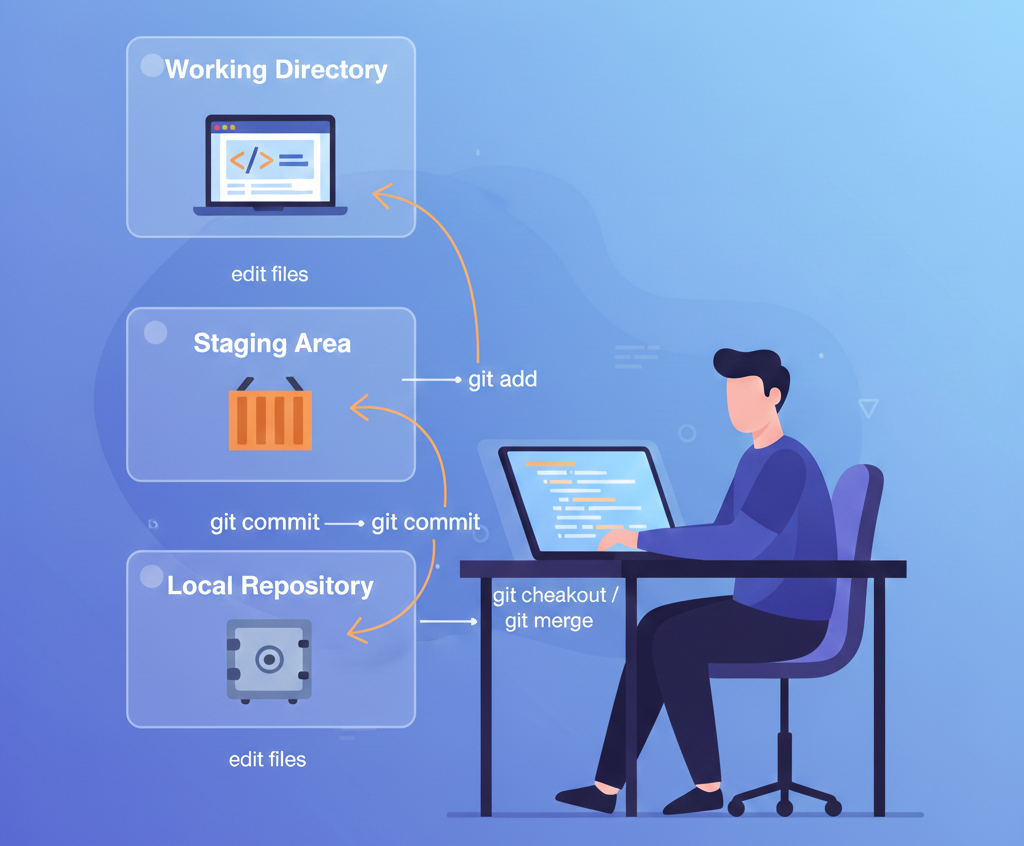
Git works using three main areas.
1️⃣ Working Directory
This is where you write code normally.
Example:
You open VS Code and write HTML, CSS, or Java code.
2️⃣ Staging Area
This is a temporary area where you tell Git:
“These changes are ready to be saved.”
3️⃣ Repository
This is where Git permanently stores your code history.
Git Repository Explained
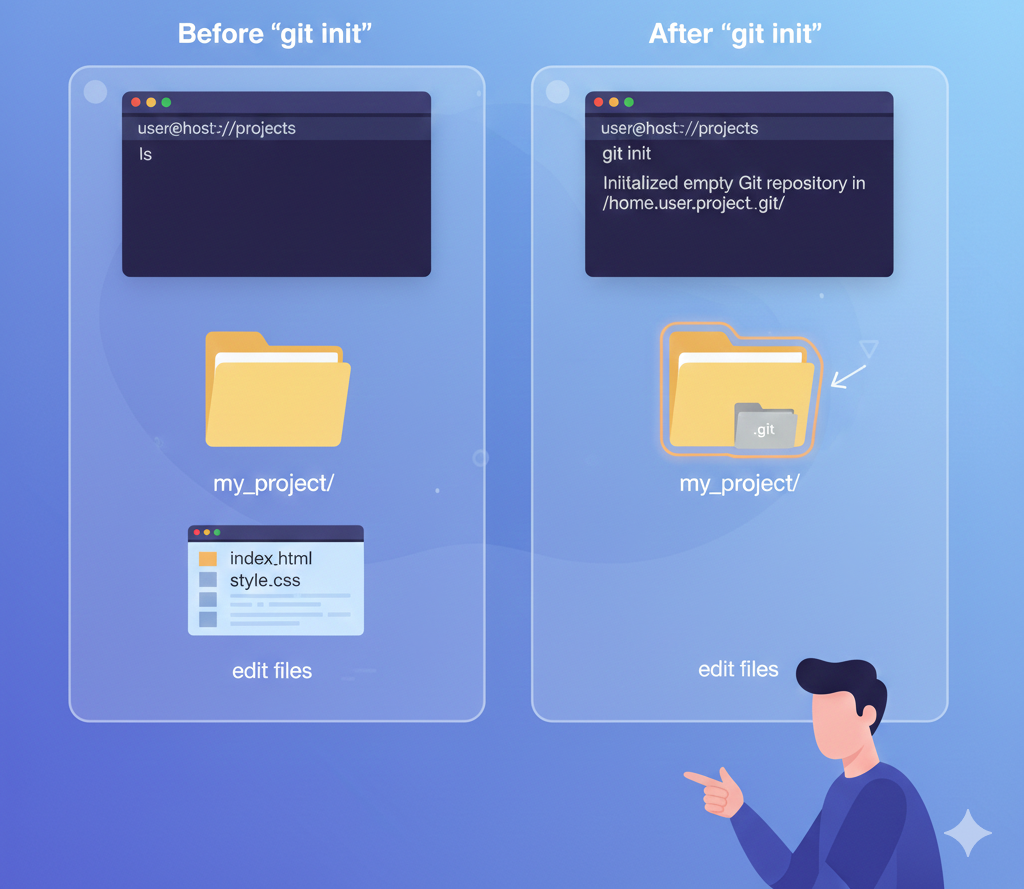
A repository is simply a folder that Git is tracking.
When you run Git in a project folder:
Git creates a hidden
.gitfolderThis folder stores complete history
You never touch this folder directly — Git manages it.
Installing and Starting Git
After installing Git, we start by creating a repository.
Command:
git init
Meaning:
Initializes Git in the folder
Converts normal folder into Git repository
Checking File Status (Very Important Command)
Command:
git status
What it shows:
New files
Modified files
Staged files
Git status is like asking Git: “What is happening right now?”
You should run this command frequently.
Adding Files to Staging Area
Git does not save changes automatically.
First, we must add files to staging area.
Add one file:
git add index.html
Add all files:
git add .
👉 This means:
“I want Git to remember these changes.”
Saving Changes Permanently (Commit)
Command:
git commit -m "Added homepage layout"
What is a Commit?
A commit is a snapshot of your project
It has:
Unique ID
Message
Time and date
👉 Commit message should explain what you did, not how.
Viewing Commit History
Command:
git log
This shows:
All commits
Author
Date
Commit ID
This is useful when you want to:
Understand project history
Go back to an older version
Branches Explained Simply
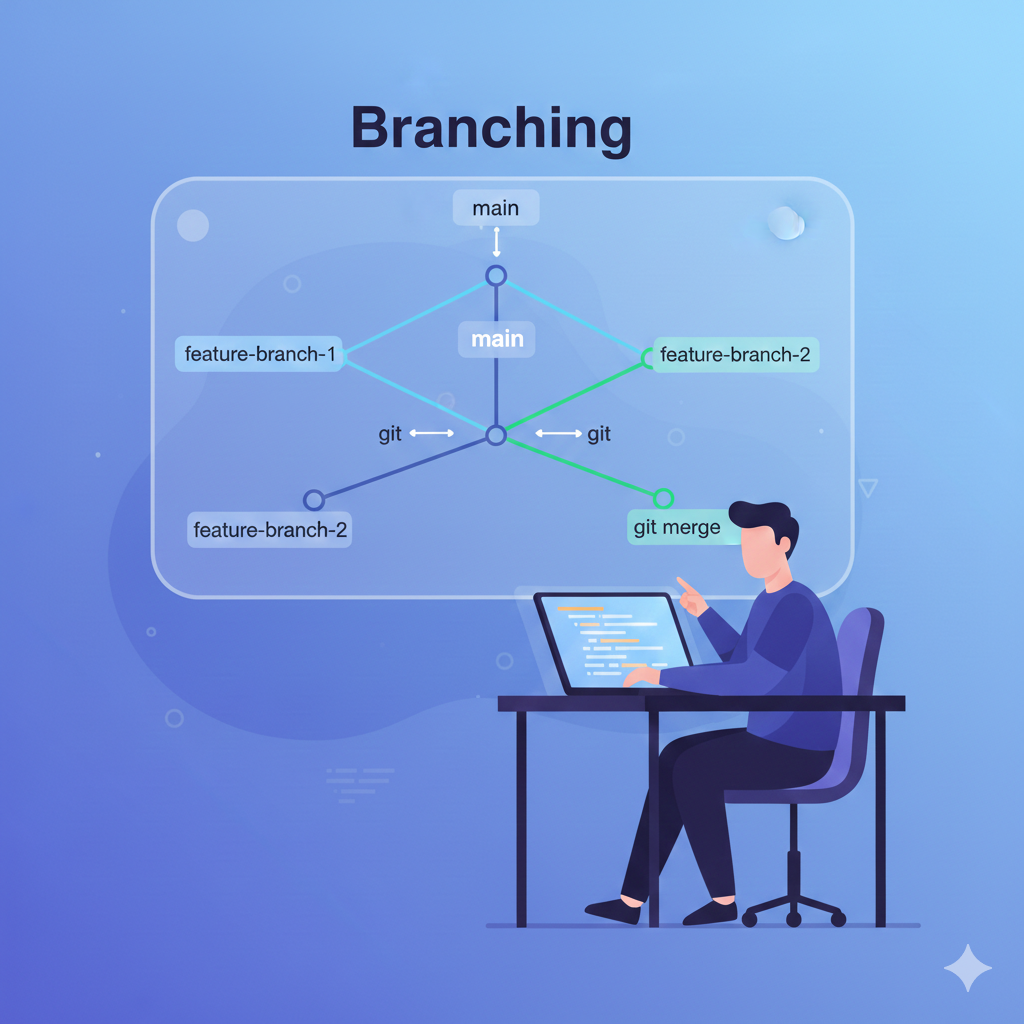
A branch is a separate path of development.
Main branch = main
When you create a branch:
You can experiment freely
Main code remains safe
Create branch:
git branch feature-login
Switch branch:
git checkout feature-login
(or modern way)
git switch feature-login
Merging Branches
After finishing work in a branch, we merge it.
git checkout main
git merge feature-login
This combines feature code into main code.
Undoing Mistakes (Very Useful)
Undo unstaged changes:
git checkout -- file.txt
Unstage file:
git reset file.txt
Go back to old commit:
git checkout commit_id
👉 Git allows mistakes without fear.
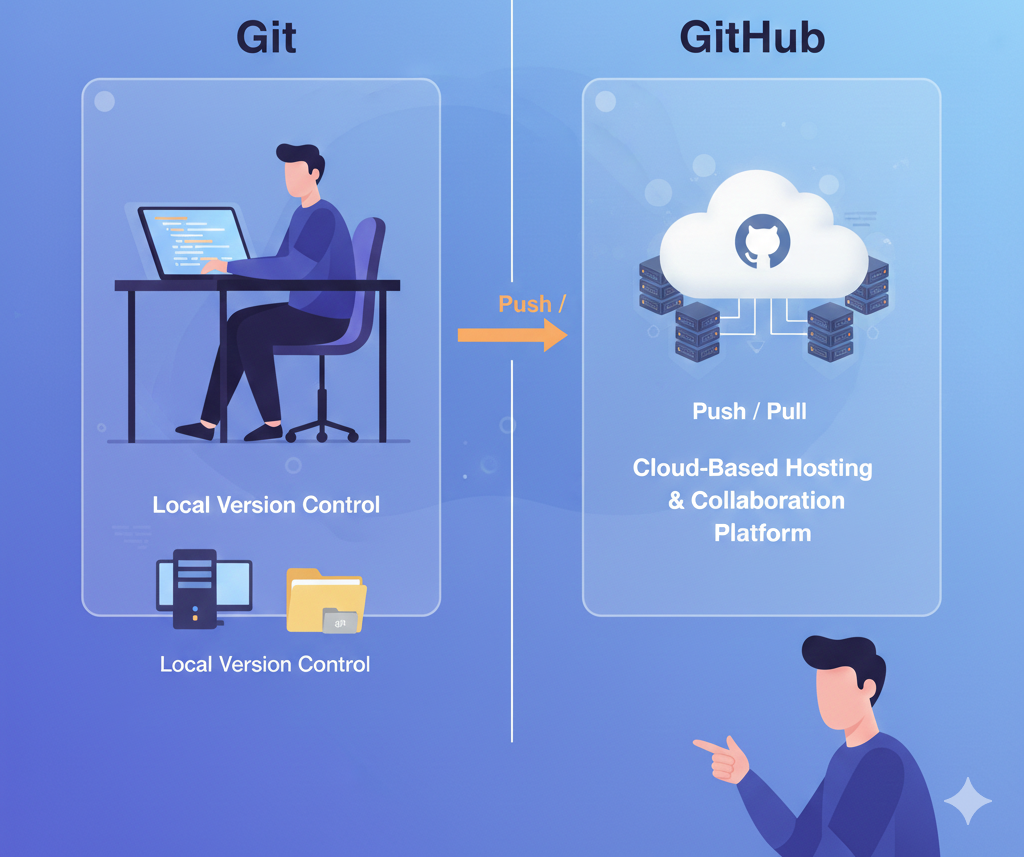
Git vs GitHub (Clear Difference)
| Git | GitHub |
| Tool | Online platform |
| Works offline | Requires internet |
| Tracks versions | Stores code online |
GitHub uses Git internally.
Real-Life Example
Imagine you are building a website:
Commit homepage
Commit CSS design
Commit JavaScript logic
If JavaScript breaks:
You go back to step 2
Fix issue
Continue safely
This is the real power of Git.
Conclusion
Git is not about commands — it is about confidence.
Once you understand:
Staging
Commit
History
Branches
Git becomes simple and logical.
For students, learning Git early makes:
Projects cleaner
Learning faster
Career stronger


